JetKVM
JetKVM – Control any computer remotely, eMMC version, limited stock
JetKVM – Control any computer remotely, eMMC version, limited stock
- Brand
- JetKVM
- 16GB Onboard eMMC (Kickstarter version)
- $109.00 In stock
- Overview
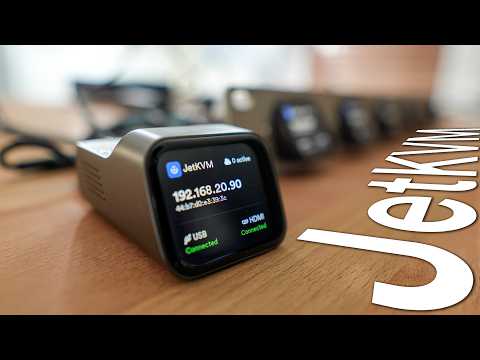
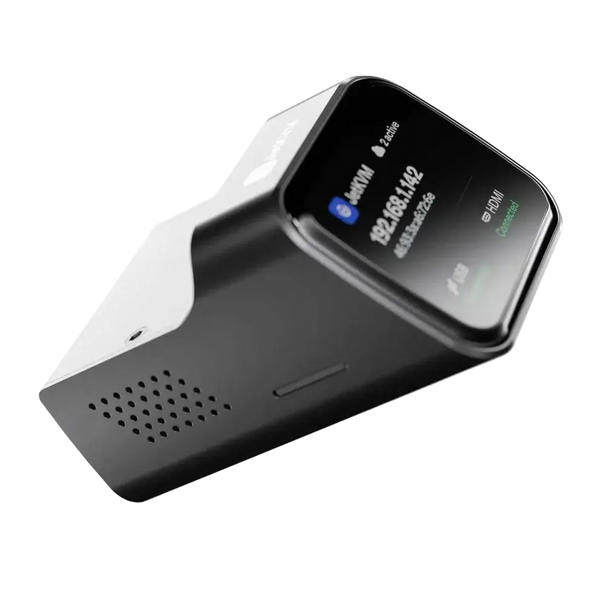
- JetKVM is a compact IP KVM for remote server management. Access BIOS, reboot systems and control computers remotely from anywhere.
Regular price
$109.00 USD
Regular price
Sale price
$109.00 USD
Shipping calculated at checkout.
Quantity
Couldn't load pickup availability
-
Country of origin
China
-
Processing time
3-5 Business Days
-
Warranty
One-Year Limited Warranty
-
Shipping
Calculated at checkout Shipping policy
-
Returns


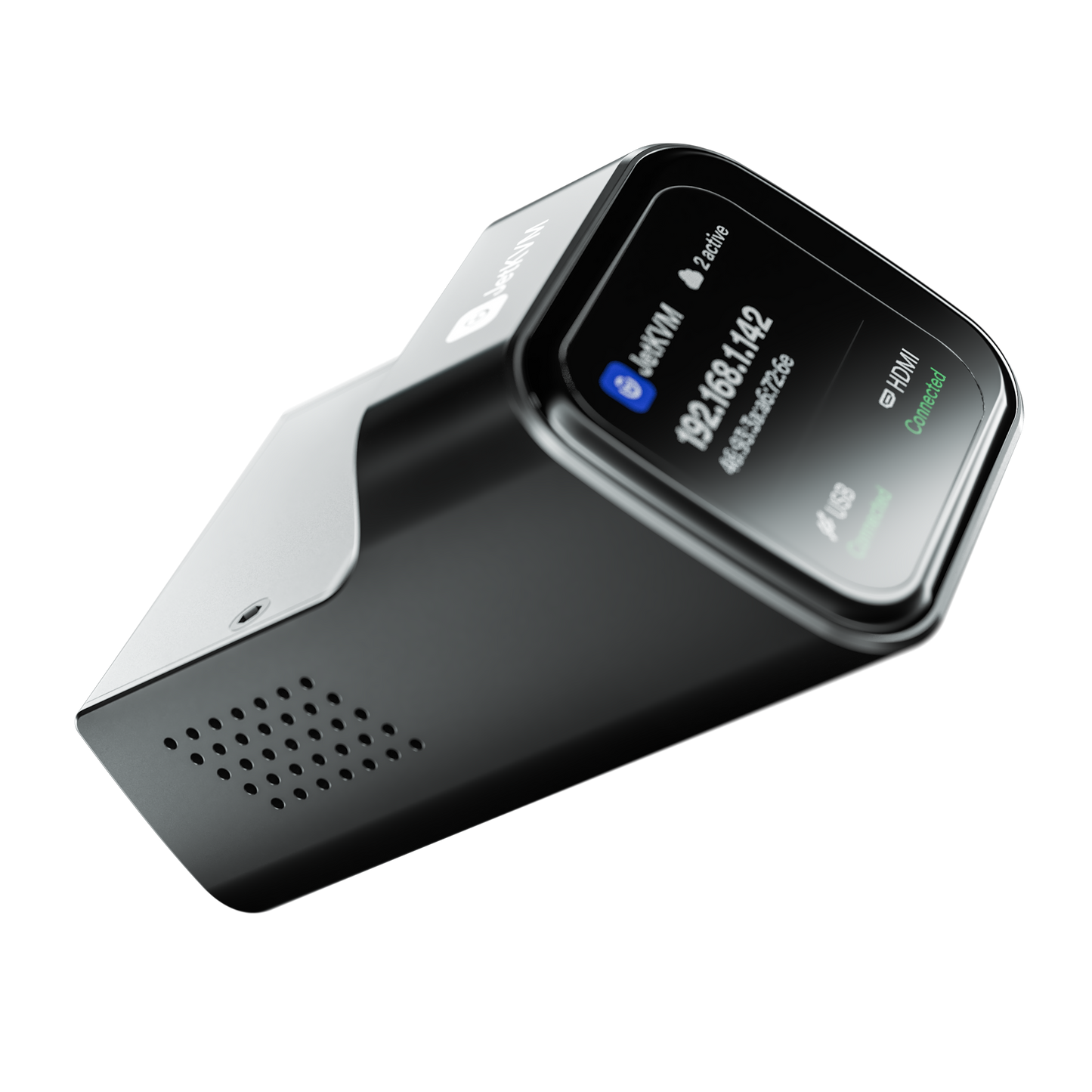
- 1 × JetKVM Device
- 1 × USB-C to USB-A Cable
- 1 × Mini-HDMI to Full-HDMI Cable
- 1 × User Manual
What's the difference between the Non-PoE and PoE versions?
The only difference is the power source. The Non-PoE version can only be powered through its USB-C port. The PoE version supports both USB-C power and Power over Ethernet (PoE) through the Ethernet port, and is fully compliant with the IEEE 802.3af PoE standard.
Why is JetKVM unable to obtain an IP address when the Ethernet cable is connected correctly?
In some cases, JetKVM may be unable to obtain an IP address immediately after connecting to the network. To resolve this issue, swipe left on the JetKVM screen, navigate to Settings → Advanced → DHCP Client, press and hold the button for 5 seconds, and wait for the device to restart and acquire an IP address. If JetKVM still cannot obtain an IP address after this process, please check your switch or router settings to ensure that DHCP is enabled and that the network device is not blocking or denying an IP address assignment to JetKVM.
Why is JetKVM stuck on "Loading video stream."?
This issue is typically caused by a WebRTC connection problem between your browser and the JetKVM device. Update your JetKVM firmware to the latest version, verify that WebRTC is functioning properly, check your browser's WebRTC and autoplay settings, and if you're using Firefox on Linux, try the Flatpak version, which may resolve compatibility issues.
How to resolve the issue of JetKVM displaying a black screen for about 10 seconds after power-on?
Please swipe left on the JetKVM screen, go to Settings → Advanced → Reset Configuration, and press and hold the button for 10 seconds. Notice: Avoid frequently plugging and unplugging the USB Type-C port, as repeated connections and disconnections may cause unstable power delivery or device failure.
My device won't power on. How can I get support?
Please visit our DOA & Warranty page for detailed information about our warranty policy and after-sales support process: https://www.ikoolcore.com/pages/warranty-policy.
How long is the warranty period?
This product is covered by a one-year limited warranty starting from the date of delivery. The warranty does not cover damage caused by improper use, including the use of an incorrect power adapter or voltage that results in motherboard failure.