

R2Max BIOS Update Guide: How to Flash Safely in 5 Steps
Table of contents
- R2 Max
- BIOS Update
- BIOS Flash
!
Read before proceeding
This guide outlines the steps to update the BIOS on your R2Max. Please read through these instructions carefully before proceeding. Updating the BIOS is an advanced operation that can lead to system failure, boot issues, or other problems requiring factory repair if done incorrectly. All resulting damages or costs will be the responsibility of the customer.
By proceeding with the BIOS update, you are acknowledging and accepting these terms.
1 Prepare a USB Flash Drive
- Use a standard USB flash drive. Solid-state drives are not recommended.
- Format the USB drive to FAT32 using DiskGenius or command-line tools in Linux.
2 Download the Latest BIOS File
Obtain the most recent BIOS file specifically designed for the R2Max from dl.ikoolcore.com/BIOS/R2Max or an authorized support channel.
i
Check your model: Make sure you download the correct BIOS version for your specific R2Max model.
3 Prepare the USB Drive with the BIOS Files
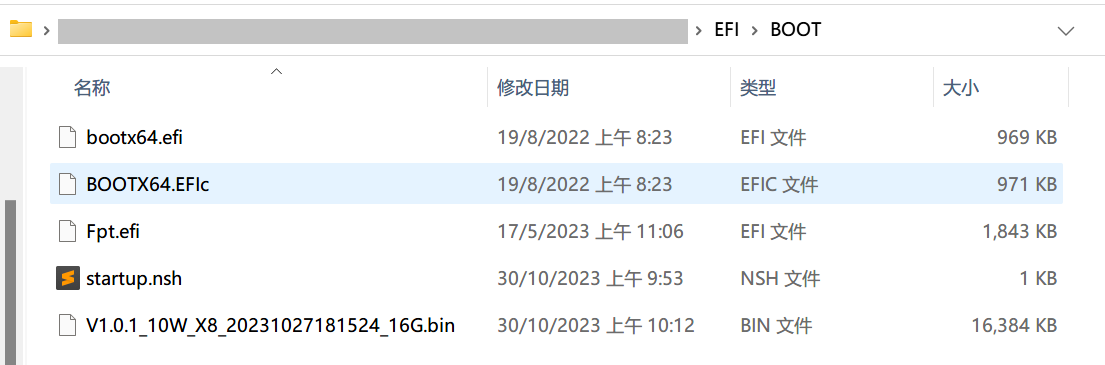
- Extract the downloaded BIOS archive. It is usually a
.zipfile. - Locate the
EFIfolder within the extracted files. - Copy the entire
EFIfolder to the root directory of your formatted USB drive.
4 Prepare the R2Max for the Update
- Disconnect all storage devices from the R2Max, including SSDs, other USB drives, and TF cards. This helps prevent data loss or conflicts during the update.
- Connect a monitor and make sure it is receiving a proper video signal. You should see the initial boot screen or BIOS splash screen.
!
Critical: Do not leave internal SSDs, other USB drives, or TF cards connected during the BIOS update.
5 Perform the BIOS Update
- Power on the R2Max with the prepared USB drive inserted into a USB port.
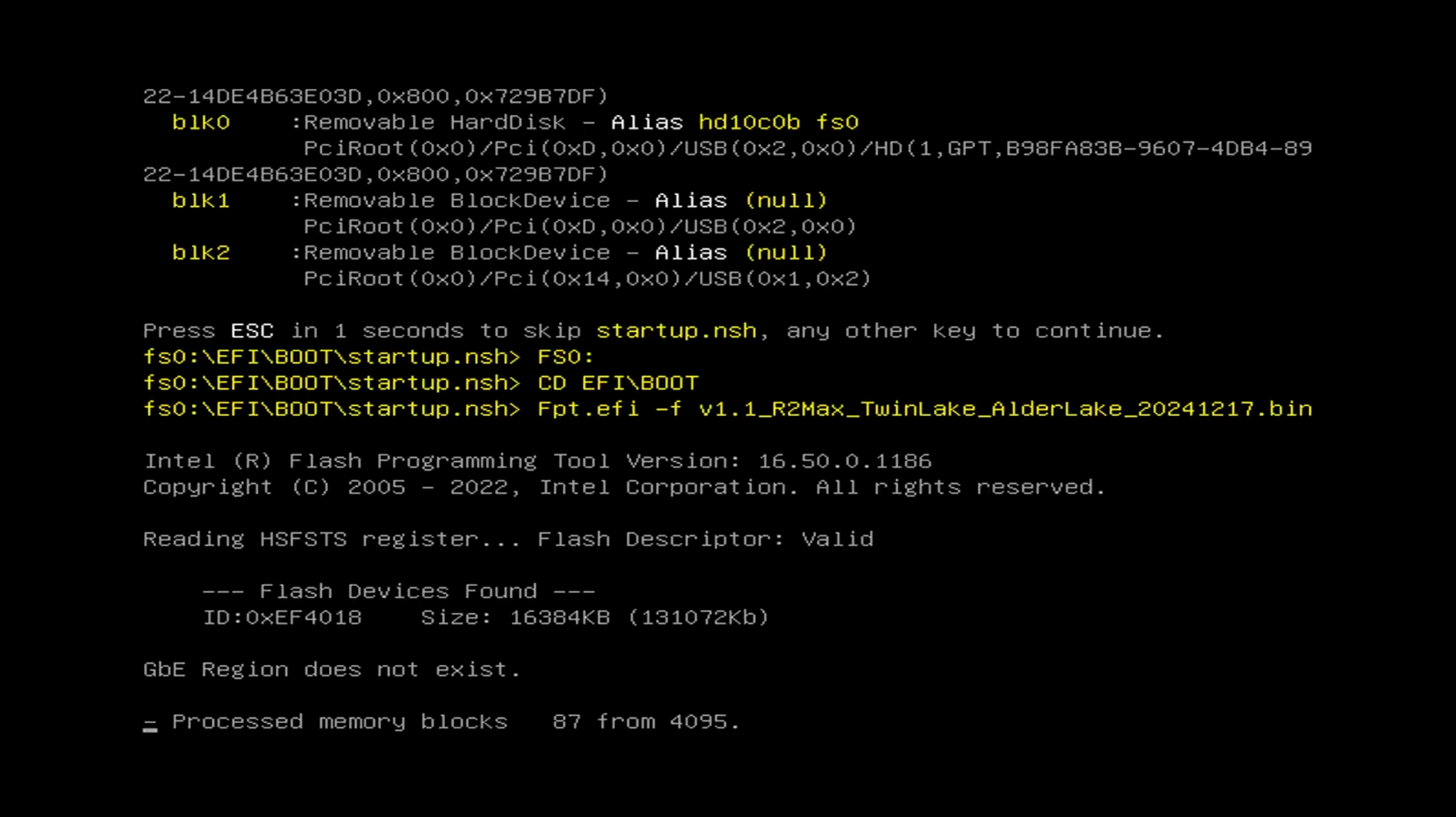
- The system should automatically detect the EFI folder and begin the BIOS update process.
- A progress bar will be displayed on the screen.
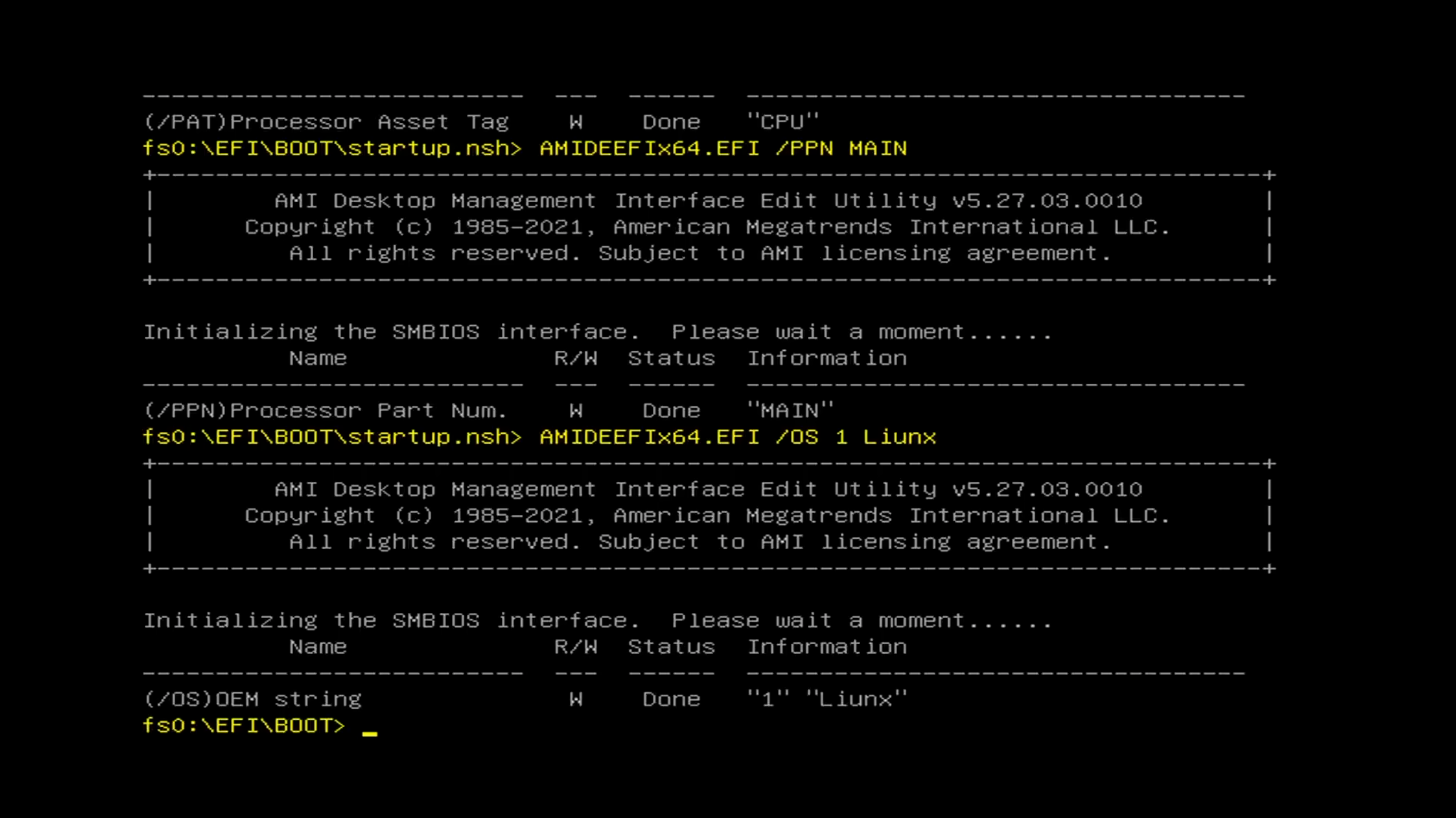
- Once the progress bar reaches 100% and a successful BIOS update message is displayed, the update is complete.
- Power off the R2Max, reconnect your storage devices, and power it back on.
!
Do not interrupt power or restart the system while the BIOS update is in progress.
i Important Notes
- A failed BIOS update can leave the system unusable or unable to boot. Follow these instructions precisely and contact technical support if you are unsure about any step.
- Always download BIOS files from official sources to avoid malware or corrupted files.
- After a successful update, you may need to reconfigure BIOS settings such as boot order or other preferences.
i
Need further assistance?
If you have any questions about the BIOS update process, please contact service@ikoolcore.com before proceeding.
If you have any questions about the BIOS update process, please contact service@ikoolcore.com before proceeding.

